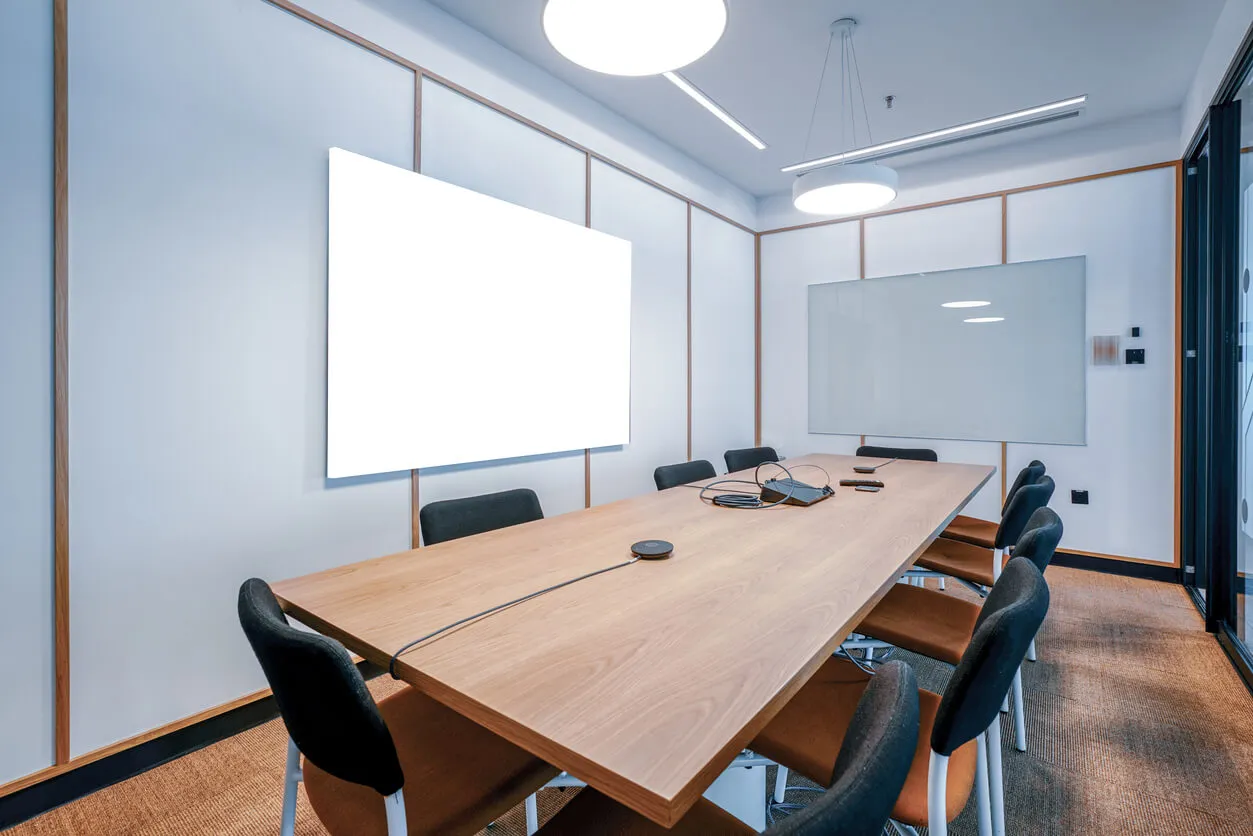
Microsoft Teams Rooms are now very much a mainstay for any organisation that operates within the Microsoft ecosystem. These video conferencing solutions allow you to hold professional video meetings and collaborate at the click of a button, regardless of whether everyone is sitting around the same table or joining remotely from further afield. For many businesses, it’s now something they simply couldn’t go without.
However, we’re increasingly speaking to clients who are concerned that their existing setup is starting to show its age or is not running as it once did. This is because some of the early, once-popular Teams Rooms devices are no longer supported, and licensing models have changed. If your kit is affected, what was once your cutting-edge meeting space will quickly become a big headache.
Fortunately, the end of your current setup doesn’t need to mean a return to huddling around a laptop with a blurry webcam and tinny audio. Upgrading your Microsoft Teams Room can and should be a quick and smooth process with the right understanding and guidance.
How To Tell If Your Teams Room Is Outdated
The beauty of Microsoft Teams Rooms devices is that they are intuitive and easy to operate. You enter the room and, with a click or two, can get a meeting underway almost instantly. This simplicity can mean that you might not really be clued up about the way your Teams Room is running and whether it’s still doing so efficiently or securely.
One of the clearest indicators that your Teams Room may be outdated is Microsoft’s ongoing changes to licensing and device support. Teams Rooms licences have changed over time, with new tiers of Basic and Pro introduced and older licence types retired. Your room may now be running on an unsupported or legacy licence, with features restricted and updates no longer supported. Legacy systems operate on older versions of operating systems (Android and/or Windows), which can be a big security red flag.
Similarly, some of the hardware required to make a Microsoft Teams Room work effectively has reached or is approaching the end of support, such as Surface Hub devices. This means that these devices no longer receive firmware updates, security patches and bug fixes. Not only will this make them hard (if not impossible) to use, but it also puts your wider network and data at risk. If you’re not sure if your device is still secure, we can check your model number for you.
Other Reasons To Upgrade Your Teams Room
If you don’t fall into the above camp, that’s not to say you wouldn’t benefit from a Teams Room upgrade. Your current device and setup might not be doing what you need it to, even if it is supported; for example, if it’s poorly configured for the space or hard to operate. Perhaps you’d be better off with screens placed differently, or need different screen-sharing capabilities to match upgraded devices and compatibility requirements.
What To Do Next
There are three key steps to follow to bring your Microsoft Teams Room back up to standard, involving licensing, hardware and configuration improvements.
- Licensing – First, you’ll need to ensure you’re on the correct Microsoft Teams Rooms licence for your needs. Basic and Pro licences have replaced the older Standard and Premium licences. Basic supports the core Teams Rooms features on up to 25 devices, while Pro opens up advanced layouts, security and encryption on an unlimited number of devices.
- Hardware – The latest Microsoft Teams Rooms solutions are far more capable than the early devices you might be upgrading from. It’s important not to immediately get carried away with features, though, and instead choose a setup that best matches the requirements of your room size and the way it’s used. With this in mind, we’re huge fans of Yealink’s Teams Rooms solutions. Yealink offers dependable performance across a wide range of devices, encompassing all-in-one meeting bars for huddle spaces to flexible systems for large boardrooms and conference spaces.
- Configuration – Security updates are also essential. Make sure any upgrade grants you the latest firmware and capabilities for regular system updates. This will not only protect your business but also ensure that any best-practice changes can roll out without any disruption.
Upgrade Your Teams Room With Agile Comms
If any of this article has rung true for your organisation, it’s probably time to get a move on with a much-needed Teams Rooms upgrade. That’s where we come in. At Agile Comms, we specialise in helping businesses improve their video conferencing capabilities through effective video conferencing solutions and are on hand to help you upgrade your current kit.
Whether you’ve got one meeting room that needs upgrading or a whole range of spaces with outdated Teams Rooms solutions, we can work with you to assess the current setup, design and specify the right solution, supply and install the hardware, and make sure everything is running smoothly. We can also help to keep your Teams Rooms up to date and secure long after installation, giving you peace of mind that you’ve invested in an upgrade for now and for the future.
To find out more about upgrading your setup and replacing a legacy Microsoft Teams Room, simply get in touch with us today.

Upgrade to Agile Comms today!
Get in touch with us to see how we can help. Use the form or contact details below to reach out today.